
Using the HBC App
For routine labels (e.g., kids church, Connect Series, Tuesday Feed), we have some pre-sets loaded into a tool on the HBCApp. Instructions below:
Log into the HBCApp
Select Label Tools
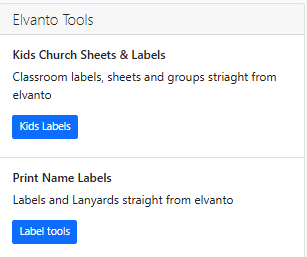
3. Under “Label sheets”, select the Elvanto group you want to print labels for.
You can also select the way you want the information to appear, add some extra text if needed (“Title on label” field) and select your font size.
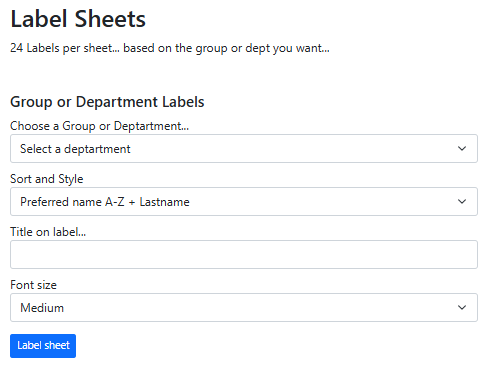
4. Select “Label sheet” - it will export a pre-formatted PDF for our standard label sheets.
5. Place label sheets (24 to a page) in the printer bypass tray, with the labels facing down
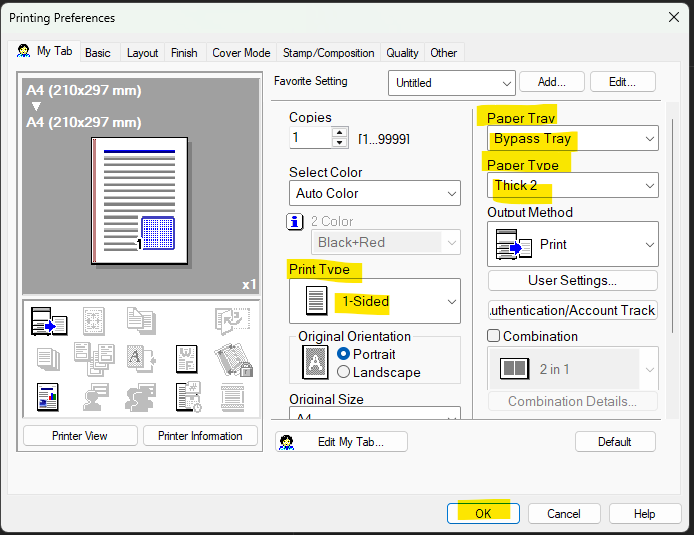
6. Print settings: 1 sided, paper tray = bypass tray, paper type = thick2
Manual formatting (mail merge)
Use this process if you need to print labels with extra information that doesn’t exist in Elvanto. These instructions are for 24 label sheets, but you can alter this process to print on different sized labels.
Process:
Download your data into an excel file
Open Microsoft Word > Mailings > Start Mail Merge > Labels
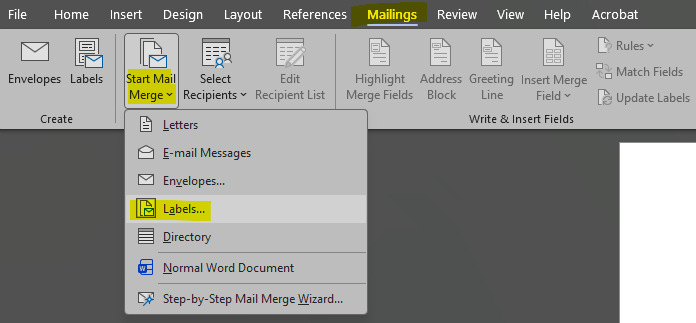
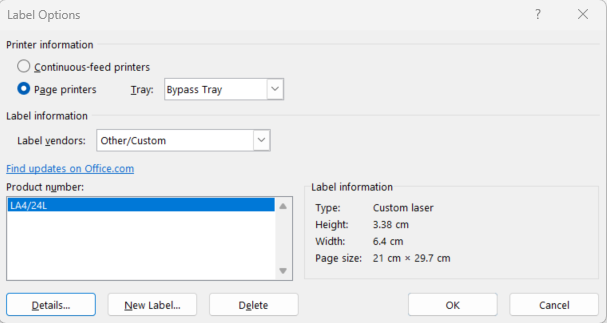
3. Select label vendors = other/custom
If someone has set up our labels on your computer in the past, they should appear as LA4/24L on your list.
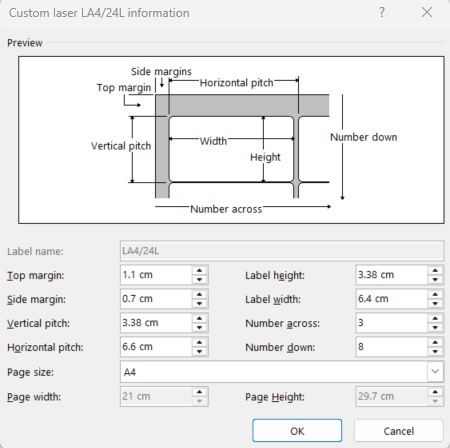
Otherwise, select “New label” and load in the label dimensions as shown below:
4. Select label LA4/24L and click OK. This should cause the outlines of the labels to appear on your Word doc (if they don’t appear, select “table layout” > View gridlines)
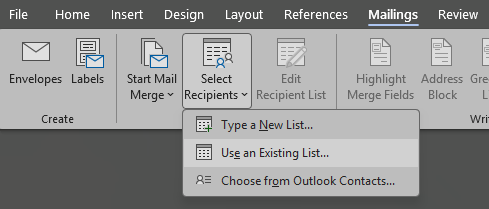
5. Click Select recipients > Use an existing list > Select your exported data list from saved location (make sure “first row of data contains column headers” is ticked)
6. Select Insert merge field
A list of all the fields (columns) from your spreadsheet will appear. You can insert the fields you want and format them.
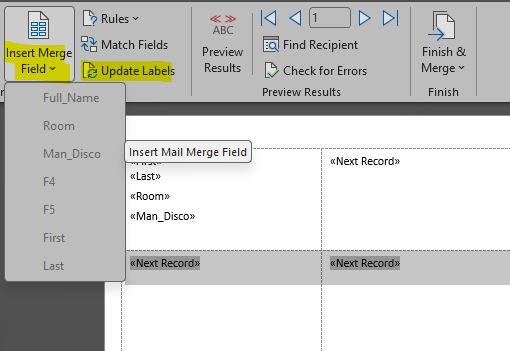
7. Select “update labels” to fill out the page of labels using your data, and “preview results” to see what they would look like.
8. When ready to print, select “Finish & Merge” > edit individual documents > all
This will open up a separate word document with all your labels formatted. You can have a look through all the labels top make sure they look ok, then print them
9. Place label sheets (24 to a page) in the printer bypass tray, with the labels facing down
10. Print settings: 1 sided, paper tray = bypass tray, paper type = thick2