Username: hunterbiblechurch
Password: unichurch
It will most likely send a confirmation code to the admin inbox.
Viewing entries in
admin
Event Registration
Use link in email informing admin of a new form submission to navigate to the form

Check registration information
WHEN NOT LINKED TO AN ELVANTO PROFILE (some of the time)
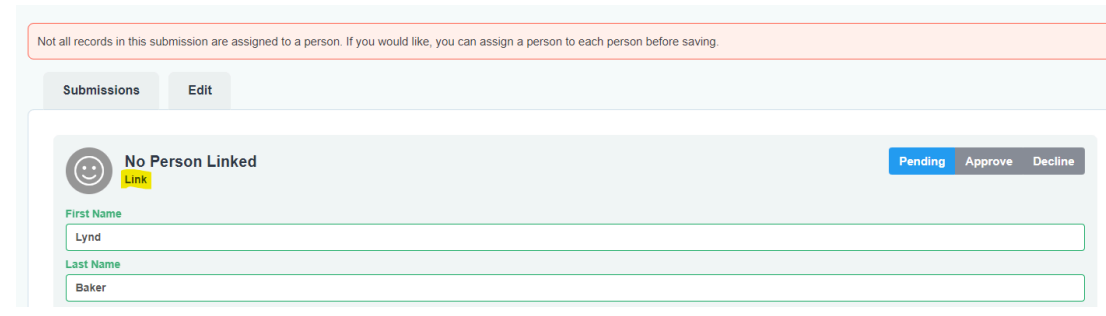
Hit “link” and search for their name. If they’re in the database, you can then click on their Elvanto profile to link the submission to someone in Elvanto. Then proceed as per someone already linked to an Elvanto profile.
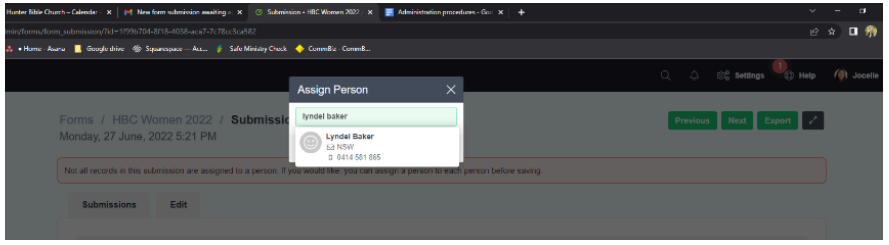
If the submission does not have a profile already in Elvanto, you’ll need to create a new person and link the new person.
WHEN LINKED TO AN ELVANTO PROFILE (most of the time - you’ll see someone’s name in green at the top of the form submission)
Check details (any discrepancies will be highlighted in orange)

Leave form submission if you believe that details need to be updated. Otherwise copy details that are in Elvanto already and paste into form field (e.g., maiden name “Hope” updated to married name “Vanderhout”)
Hit “Approve”

Navigate back to submissions
Repeat for any remaining registrants
Archive form submission email in admin inbox
Elvanto Rosters
Services > edit multiple > specify time frame + congregation
Adding volunteers
Find correct ministry position (e.g., “production team member”)
Click the + button
Clear all the search filters
Search for the volunteer you want rostered
Drag them to the correct slot
Deleting volunteers
Press the red bin icon next to their name > remove
How People Get Elvanto Access
Access to Elvanto is managed through Elvanto Department Positions, A Google Spreadsheet and a HBC App script that keeps access in sync with people in various positions.
Give them a Department Position
Add a Department Position to the person. That Department Position should have a corresponding Access Level in the ‘Elvanto Departments and Access Syncing’ spreadsheet.
HBCApp will auto-update their Elvanto Access Level
Every 30 mins (or so) a script will run on the HBCApp.com site that will update Elvanto People and make sure they have the Elvanto Access prescribed by the Dept Position with the highest level of access. E.g. If Sam is a Barista who needs 1-Roster Access, and also a Area Leader who needs 3-Edit Access, he will get 3-Edit Access.
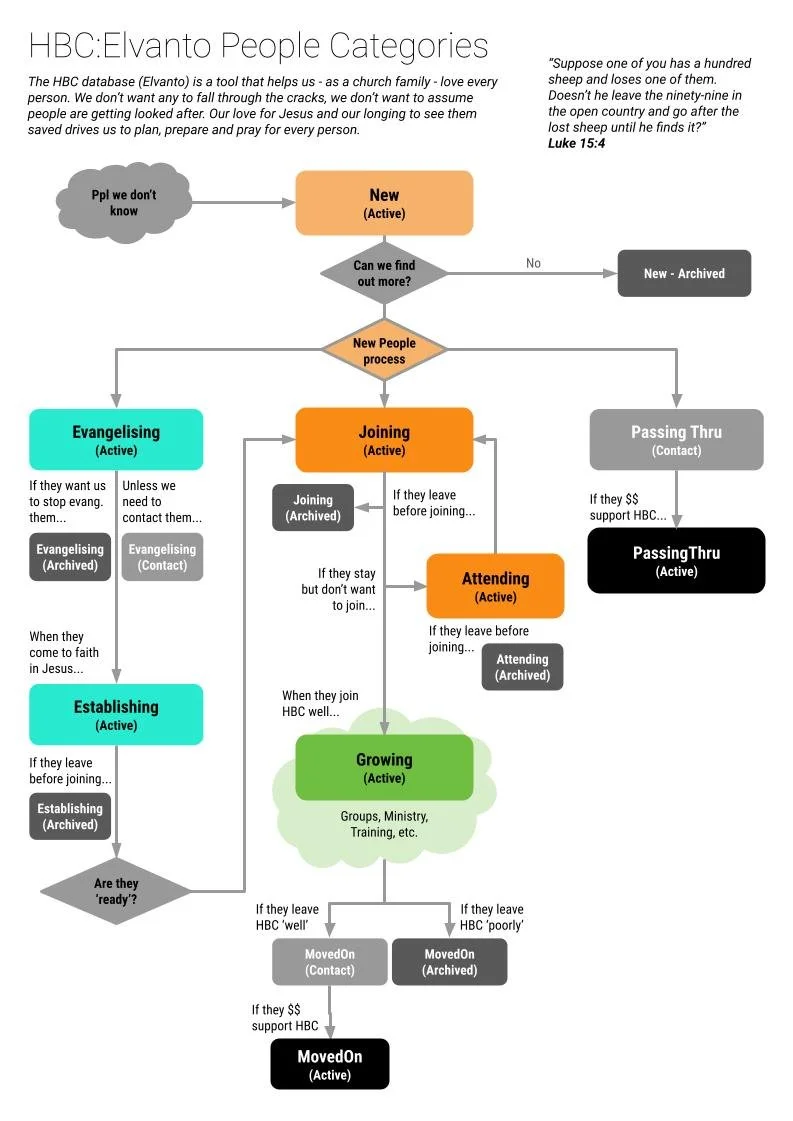
This will also remove people’s access level if they are no longer in a Dept or if they change their people category. Only people in Joining, Attending and Growing can have Elvanto Access.
People with 1-Roster access can create their own login
If people get assigned 1-Roster Access, we don’t ask them to sign an access agreement, nor do we send them a login link.
Instead, they might receive a Roster Reminder email (e.g. to serve on a Sunday). That email invites them to login and see when they are serving in the future, and to do that, they'll need to go through the ‘forgot password’ process and create a login.
HBCApp will update people in the ‘Needs to Sign Database Agreement’ Group
If someone needs Access above 1-Roster, and they have NOT yet signed the Database access Agreement, the HBCApp will automatically add them to the ‘People who need to sign the Database Access Agreement’ Elvanto Group.
People who no longer need access will be removed from the group.
Admin Jobs Regarding Elvanto Access
Monthly email asking people to sign database access agreement
At least once per month, admin needs to email people in the ‘People who need to sign the Database Access Agreement’ Elvanto Group.
Email them the template: Invite to sign database access agreement.
This will invite them to sign the HBC Database Access Agreement online form.
Monthly email asking people to re-sign the database access agreement after 3 years
At least once per month, admin needs to email people in the ‘Need to re-sign the Database Agreement (after 3 years)’ Elvanto People View.
Email them the template: Invite to sign database access agreement.
This will invite them to sign the HBC Database Access Agreement online form.
Review Submissions to HBC Database Access Agreement
When people sign the Database Access Agreement, they will appear in the Submissions tab. These submissions will need to be reviewed and cleared.
Please ensure the “Date Access Policy Read” matched the date they signed the form.